<MØHΞ/>

Cybersecurity enthusiast • Reverse Engineer • Full-stack developer. Passionate about secure systems, low-level programming, and breaking things to learn how they work.

Navigation

  • about
  • projects
  • Blog
  • contact

Connect

© 2026 <MØHΞ/>. Built with Next.js, Tailwind.

../injector

14 September 2025

simple tool to hide Payloads in Image Files and pdf.
image

Why to hide the payloads?

Hiding a shellcode in an image file or PDF file is a classic steganographic technique used to bypass EDRs. the goal to make the malicious file appear as harmless file like image, so it can be delivered to a target system without any suspicious.

also modern AV/EDR scan memory regions disk artifacts and process behaviors for known signatures. one evasion method is to hide our payload in images png,jpg.

How it work?

  1. Read Files: The tool reads the host file (like an image or PDF) and the payload file (your shellcode) into memory.
  2. Encrypt Payload: It encrypts the shellcode using a simple XOR cipher with your secret key. This scrambles the code to hide it from antivirus scanners.
  3. Append and Save: It takes the original image data, appends the encrypted shellcode to the end, and then adds a final 8-byte "footer" that stores the size of the shellcode. This new combined data is saved as the output file.

How It Executes

  1. Read Size: The tool reads the last 8 bytes of the file to know how big the hidden shellcode is.
  2. Extract and Decrypt: It extracts the encrypted shellcode from the file and decrypts it in memory using your secret key.
  3. Allocate and Run: It asks the OS for a new piece of memory that can be executed, copies the decrypted shellcode into it, and runs the code directly from memory.

Let's see the code

first function ReadFile it does the following:
  • It checks if the file exists. If not, it shows an error.
  • It opens the file in binary mode, which reads the file byte-for-byte exactly as it is.
  • It measures the file's size to know how much memory to prepare.
  • It creates a buffer (a temporary storage area) in memory of that exact size.
  • It copies all the file's data into that buffer and then returns it.
  • Loading code block...

    function encrypts or decrypts data using a simple but effective method called a repeating XOR cipher. The beauty of XOR is that the same operation reverses itself.

    The Logic
    1. Prepare the Output: It starts by making an exact copy of the input data. This copy will be modified and become the encrypted (or decrypted) result.
    2. Loop Through the Data: It goes through every single byte of the data, one by one.
    3. Apply the XOR Key: For each byte of data, it takes a corresponding byte from the key and performs a XOR operation on it.
      • result[i] ^= key[i % key.size()];
    4. Repeat the Key: What if the data is longer than the key? The % (modulo) operator handles this. It makes the key repeat.
      • If your key is "ABC" and your data is "SECRET", the operation looks like this:
        • S is XORed with A
        • E is XORed with B
        • C is XORed with C
        • R is XORed with A (the key repeats)
        • E is XORed with B
        • T is XORed with C
    5. Return the Result: After every byte has been XORed, the function returns the modified data.
    Loading code block...

    function takes a host file (like an image), encrypts your payload, and hides it inside.

    1. Encrypt the Payload: First, it calls the XOREncryptDecrypt function to encrypt your shellcode using the provided key. This keeps it hidden.
    2. Append the Encrypted Payload: It takes the original file's data (buffer) and simply tacks the encrypted_shellcode onto the very end.
    3. Append the Size: This is the clever part. How will you know where the payload ends and the image begins when you want to extract it later?
      • The function takes the original size of the shellcode (e.g., 512 bytes).
      • It appends this size as a tiny 8-byte number at the absolute end of the file. This number acts as a marker.
    4. Return the New File: The function returns the final combined data: [Original File Data] + [Encrypted Payload] + [Payload Size].
    Loading code block...

    the most important function does the reverse of the injection: it finds the hidden payload within a file, extracts it, and decrypts it.

    1. Read the Payload Size: It first looks at the very end of the file. It reads the last 8 bytes to get the shellcode_size that was stored there during injection. This tells the function exactly how many bytes of encrypted data to look for.
    2. Locate the Encrypted Payload: Now that it knows the size, it can calculate where the encrypted data starts and ends. It works backward from the end of the file:
      • The end is the 8-byte size marker.
      • The section right before that is the encrypted payload.
    3. Extract the Payload: It copies that specific chunk of encrypted data out of the file into a new buffer.
    4. Decrypt and Return: Finally, it uses the XOREncryptDecrypt function with the same xor_key to decrypt the payload, restoring it to its original, executable form. This decrypted shellcode is then returned.
    Loading code block...

    This function is the final step: it extracts the hidden shellcode from a file and runs it directly in memory.

    1. Load the File: It first reads the entire file (e.g., the image with the hidden payload) into memory.
    2. Extract and Decrypt: It calls the ExtractAndDecryptShellcode function you asked about earlier. This pulls the shellcode out of the file and decrypts it using the secret key.
    3. Allocate Executable Memory: This is the most critical step for evasion. It asks the operating system for a new, empty chunk of memory that is marked as executable. This is done with the mmap command.
    4. Copy the Shellcode: It copies the decrypted, ready-to-run shellcode into this special executable memory block.
    5. Execute It: The program then treats that block of memory as a function and simply calls it. The CPU starts executing the instructions in the shellcode.
    6. Clean Up: After the shellcode finishes running, the function releases the special memory block back to the operating system using munmap.
    Loading code block...

    This main function is the "brain" of your program. It reads the commands you type in the terminal and decides what to do.

    1. Parse Command-Line Arguments: It starts by looping through all the arguments you provide when you run the program (e.g., the file paths, the -execute flag, and the -key). It stores these in variables like inputImagePath, key, etc.
    2. Decide the Mode: It checks if you used the -execute flag.
      • If YES, it knows you want to run a payload.
      • If NO, it assumes you want to inject a payload into a file.
    3. Execute Mode:
      • It checks if you provided the necessary inputs (the image file and the key).
      • If everything is correct, it calls the extractAndRunShellcode function to do the actual work of running the payload.
    4. Injection Mode:
      • It checks if you provided all the required inputs (input image, output file name, payload file, and key).
      • It then calls the other functions in sequence:
        1. ReadFile to load the image and the shellcode.
        2. InjectEncryptedPayload to combine them into a new file.
        3. Finally, it writes this new, combined data to your specified output file.
    Loading code block...

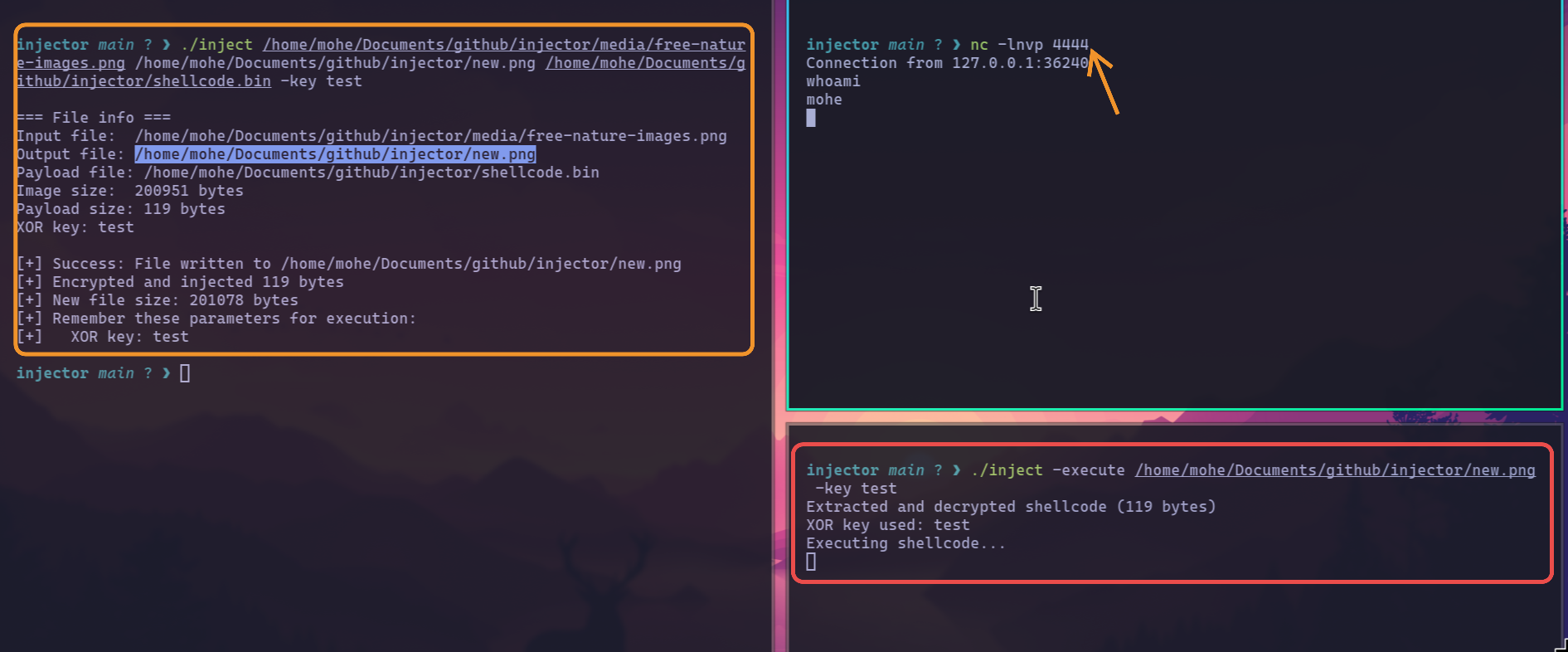
    Let's test the code

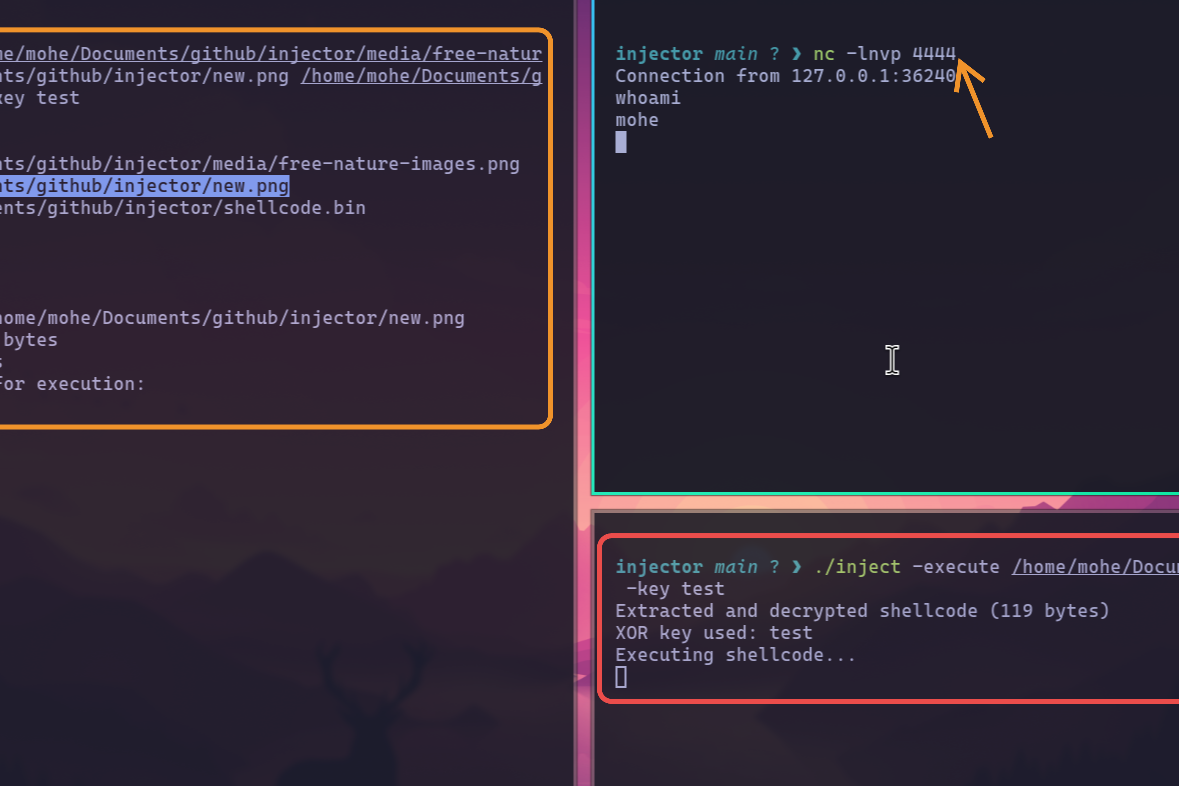
    Window 1: The Attacker (Top Right)

    • What we did: We started a listener using nc -lnvp 4444. This command tells our computer to wait for an incoming connection on port 4444.
    • Result: It's just waiting patiently.

    Window 2: The Injection (Left)

    • What we did: We used your injector tool to hide a malicious payload (shellcode.bin) inside a normal image (free-nature-images.png).
    • ./injector <original_image> <new_image> <payload_file> -key test
    • Result: The tool created a new file, new.png. This file looks like a normal picture, but it secretly contains our encrypted payload. The secret key is "test".

    Window 3: The Execution (Bottom Right)

    • What we did: We simulated a victim running the payload. We used the injector tool in its second mode to extract and run the code hidden inside new.png.
    • ./injector -execute new.png -key tes
    • Result: The script found the payload, decrypted it with the key "test", and executed it in memory.

    The Final Result (Back in Window 1)

    • The executed shellcode's job was to connect back to our attacker machine.
    • As soon as the payload ran in Window 3, a "Connection from 127.0.0.1" appeared in our listener window.
    • We now have a remote shell on the "victim" machine. We tested it by typing whoami, and it correctly responded with mohe.
    image

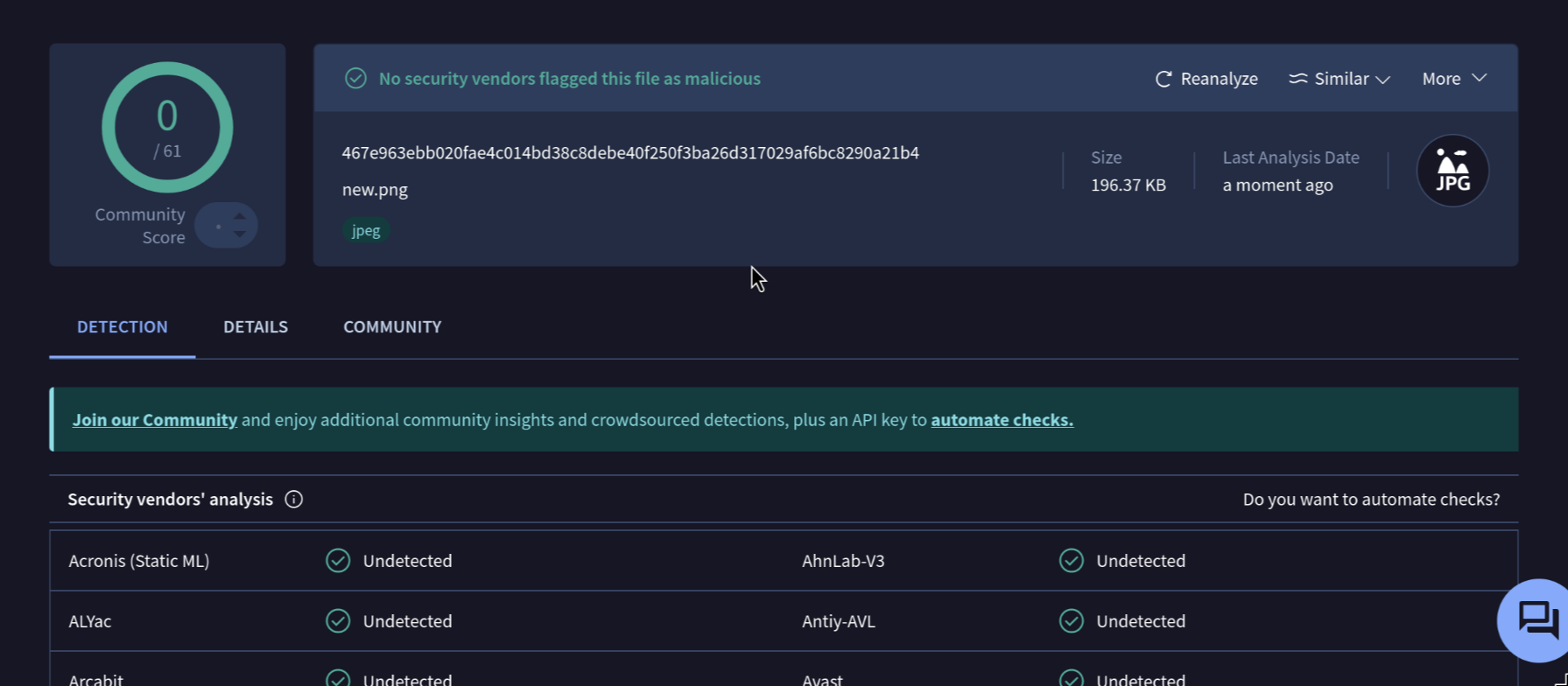
    is it detectable?

    as we can see this is the malicious image, no EDR was able to detect it, because it is encrypted with XOR.

    image